Product & features
Overview
Vaks PM is a multi-user project-management (PM) web application designed for organizations of 200 or more users and built to run entirely on infrastructure the organization controls (on-premise: hosted on its own servers rather than on a vendor-operated online service). It covers the full lifecycle of a project portfolio: planning, execution (Kanban boards and Gantt scheduling), time and workload tracking, collaboration, skills management, finance and reporting. Every capability is exposed through a single REST API (Representational State Transfer Application Programming Interface) that the web front end itself consumes, so any function in the product can also be driven from a script.
Guiding principles
On-premise first
No mandatory dependency on any external online service. The only optional outbound connections are an email relay and a corporate identity provider.
API-first
The web application uses the same public REST API as third-party integrations. Nothing the UI does is unavailable to an integration.
Modular authentication
Local accounts and Role-Based Access Control work out of the box; single sign-on, automated provisioning and SAML can be added later without a rewrite.
Server-side RBAC
Every permission is enforced on the server, on every REST route and every real-time event, never only in the browser.
Glossary
Acronyms used throughout this guide, defined once here for reference.
| Term | Meaning |
|---|---|
| PM | Project Management: the discipline of planning and running projects; also the abbreviation for the product itself. |
| RBAC | Role-Based Access Control: permissions are granted through roles assigned to users rather than to individuals directly. |
| SSO | Single Sign-On: users authenticate once with the corporate identity provider and reach the application without a separate password. |
| OIDC | OpenID Connect: a modern federated-authentication protocol built on OAuth 2.0, and the recommended SSO method. |
| SAML | Security Assertion Markup Language: an older XML-based identity-federation protocol, offered as an alternative to OIDC. |
| SCIM | System for Cross-domain Identity Management: a standard protocol (RFC 7644) for an identity provider to create, update and deactivate accounts in a downstream application automatically. |
| SMTP | Simple Mail Transfer Protocol: the protocol used to send email, here for notifications. |
| API | Application Programming Interface: the programmatic interface (here a REST API over HTTP) through which software calls the product. |
| PAT | Personal Access Token: a long key generated by a user and used by a client in place of an interactive login. |
| MCP | Model Context Protocol: a standard protocol through which an AI (artificial intelligence) assistant calls an application's tools and data via a dedicated server. |
| GDPR | General Data Protection Regulation: the European data-protection regulation governing personal data (right to erasure, right to portability). |
| CSV | Comma-Separated Values: a plain-text tabular file format, used for imports and exports. |
| HMAC | Hash-based Message Authentication Code: a cryptographic signature proving a message came from the expected sender and was not altered. |
| SIEM | Security Information and Event Management: a central platform that collects and analyses security logs (for example Splunk, Microsoft Sentinel, QRadar). |
| TOTP / MFA | Time-based One-Time Password / Multi-Factor Authentication: a temporary code from a mobile app used as a second sign-in factor in addition to the password. |
| IdP | Identity Provider: the system that authenticates users, for example Microsoft Entra ID. |
| JWT | JSON Web Token: a signed session token issued after sign-in. |
| CPM | Critical Path Method: a scheduling technique that finds the longest chain of dependent tasks (the path that determines the project's earliest finish). |
| S3 | Simple Storage Service: an object-storage interface, now an industry de-facto standard. Vaks PM stores files in a self-hosted S3-compatible store. |
Tasks & Kanban
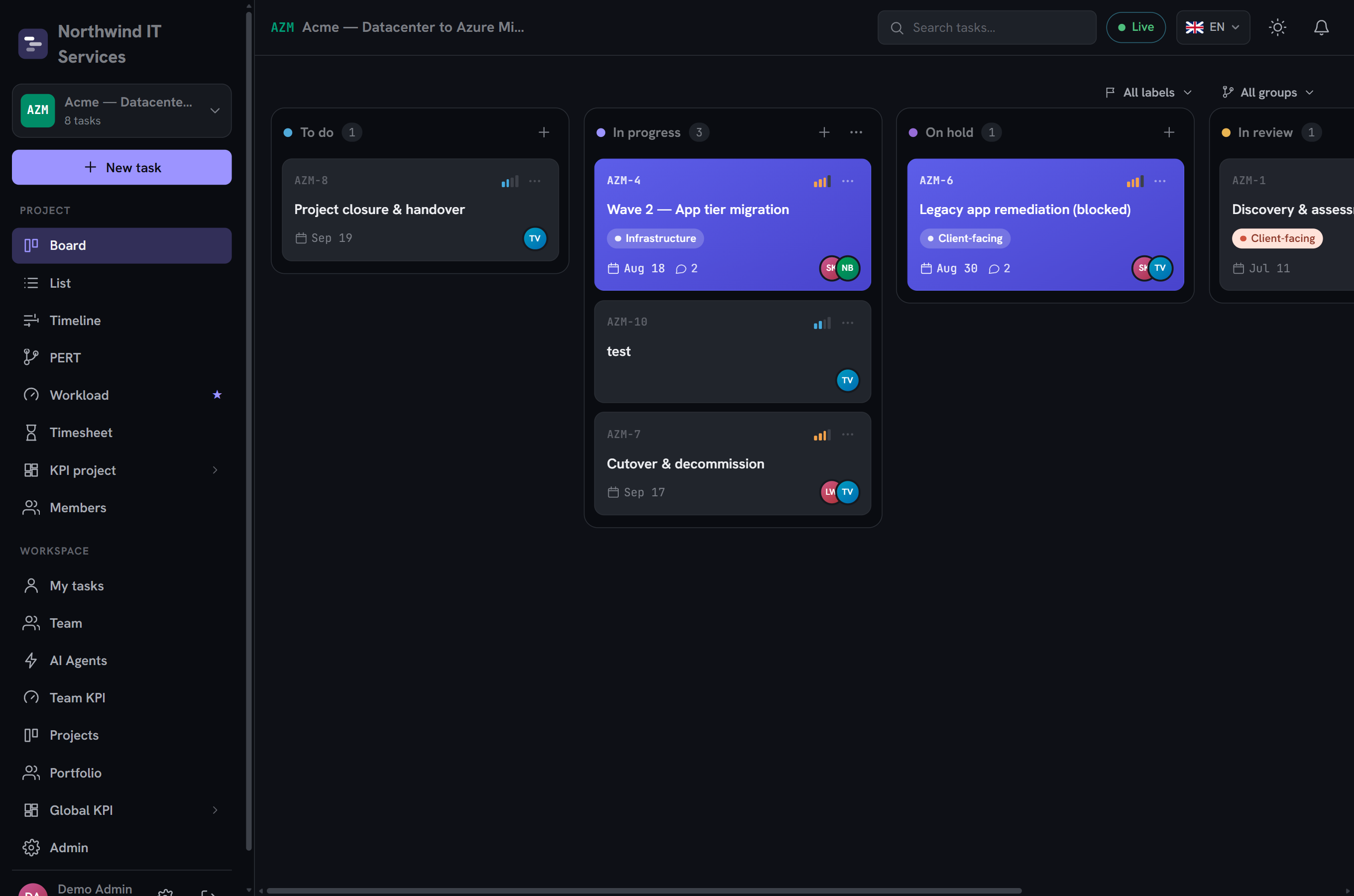
Tasks are the core work unit. They are organized on Kanban boards (boards of cards arranged in columns by status, for example To do, In progress, Done) and in flat task lists. A task carries a title and description, a start date and a due date, an estimate (in hours or days), a priority, an optional required skill, assignees, colored labels and an optional milestone flag.
Kanban boards
Columns by status with smooth drag-and-drop. Cards reorder using a fractional position value, so inserting a card never requires renumbering the rest of the column.
Task lists & structure
Dated tasks with estimates, priorities, milestones, and grouping into subtasks for larger pieces of work.
Task detail
The working surface for a single task: assignment, required skill, estimate, time logging, comments and attachments, all in one place.
How it works at an operator level: boards and labels are scoped to a project. Moving a card issues a single positioned move on the server, which broadcasts the change in real time to everyone viewing the project (see Collaboration). Labels are colored tags reusable across the project's tasks.
Customization shipped
A frozen data model sooner or later forces a workaround out of the tool — a "Technical review" status faked with a label, a business field crammed into the description. Vaks PM lets an organization extend its task and project vocabulary without touching code: custom fields to capture a business value of its own, and custom statuses to refine a phase without changing its engine.
Custom fields
A custom field is an additional piece of data defined by the organization and attached to tasks or projects — for example a purchase order number, a business criticality, or a client team. Each definition carries a type (text, number, date, dropdown or checkbox) and can be restricted to specific projects instead of applying organization-wide; without a restriction, it applies everywhere. Fields are always optional: no custom field can currently block creating a task or a project.
| Type | Typical use |
|---|---|
| Text | A short free-form value (a reference, an internal code). |
| Number | A quantity or a non-financial amount (for example a score). |
| Date | A business date distinct from the task's start/due dates. |
| Dropdown | A choice among options defined ahead of time by the administrator. |
| Checkbox | A binary flag (yes/no). |
The field catalog is managed under admin area → Customization → Custom fields, behind a configurable write policy (administrators only by default). Once defined, fields appear on the task detail or the project form, alongside the native fields.
Custom statuses (sub-statuses)
A task's five phases (To do, In progress, On hold, In review, Done) remain the product's engine — reporting, automations, auto-planning and the AI agent lifecycle all rely on them without exception. A sub-status adds granularity inside a phase, never replacing it: for example Technical review and Client review as two sub-statuses of the In review phase.
A sub-status belongs to one specific phase and, like custom fields, can be restricted to specific projects. On the Kanban board, a column's active sub-statuses appear as containers inside their phase's column; dropping a card into a container sets both the status and the sub-status in one move. From the task detail, the sub-status picker only offers those belonging to the current phase — changing phase is still done through the status itself.
A sub-status can designate recipients to notify on entry (users, teams, or both): as soon as a task enters it, they receive an email and, if configured, a Teams card, with a one-hour grace period per task to avoid noise from quick back-and-forth moves.
Scheduling & Gantt
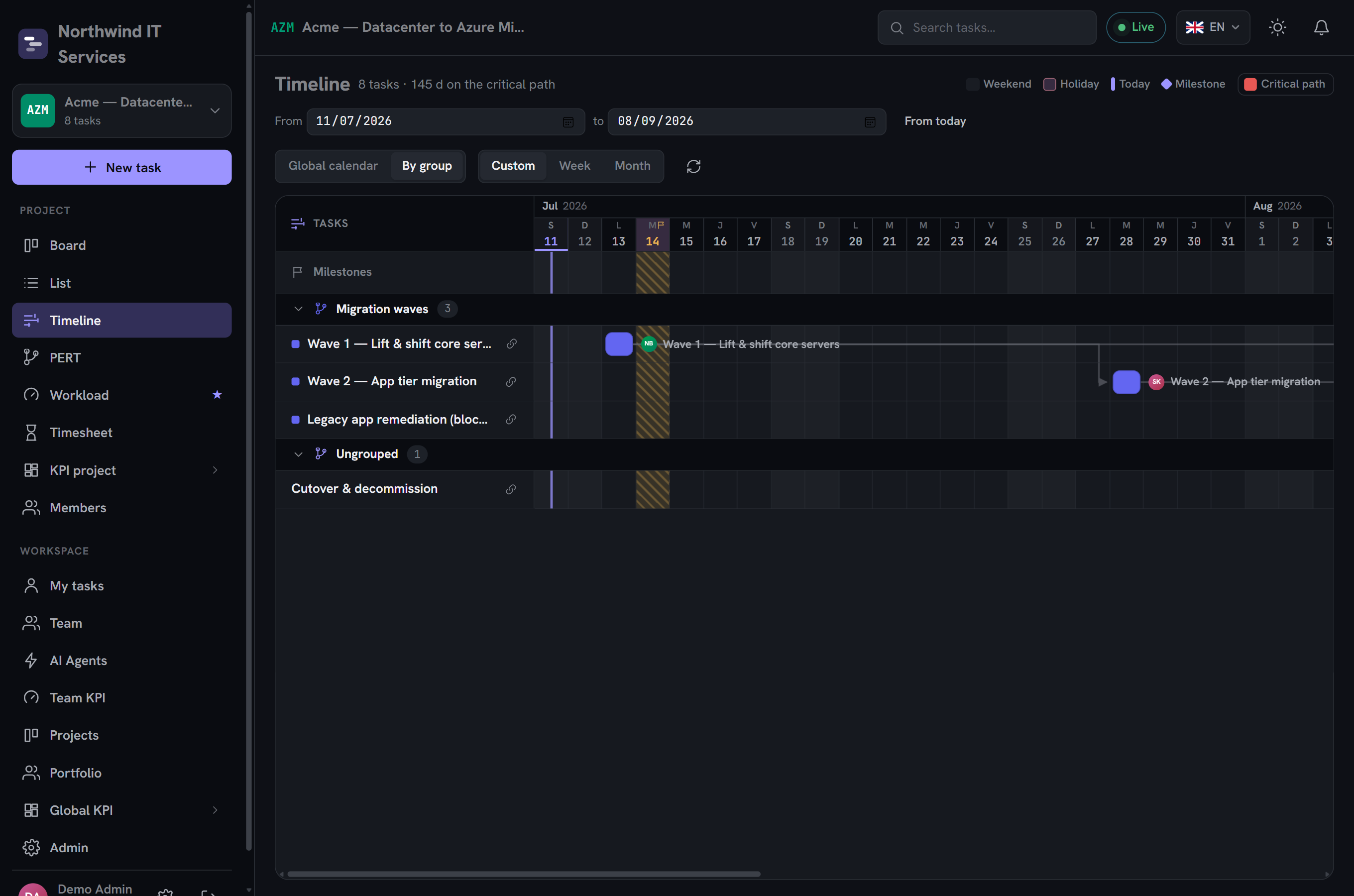
The Gantt view is a scheduling chart that draws each task as a time-based bar along a date axis, with the dependencies between tasks shown as arrows. It supports the four standard dependency types and computes the project's critical path.
| Dependency | Meaning |
|---|---|
| Finish-to-Start (FS) | The successor cannot start until its predecessor finishes (the most common link). |
| Start-to-Start (SS) | The successor cannot start until its predecessor starts. |
| Finish-to-Finish (FF) | The successor cannot finish until its predecessor finishes. |
| Start-to-Finish (SF) | The successor cannot finish until its predecessor starts. |
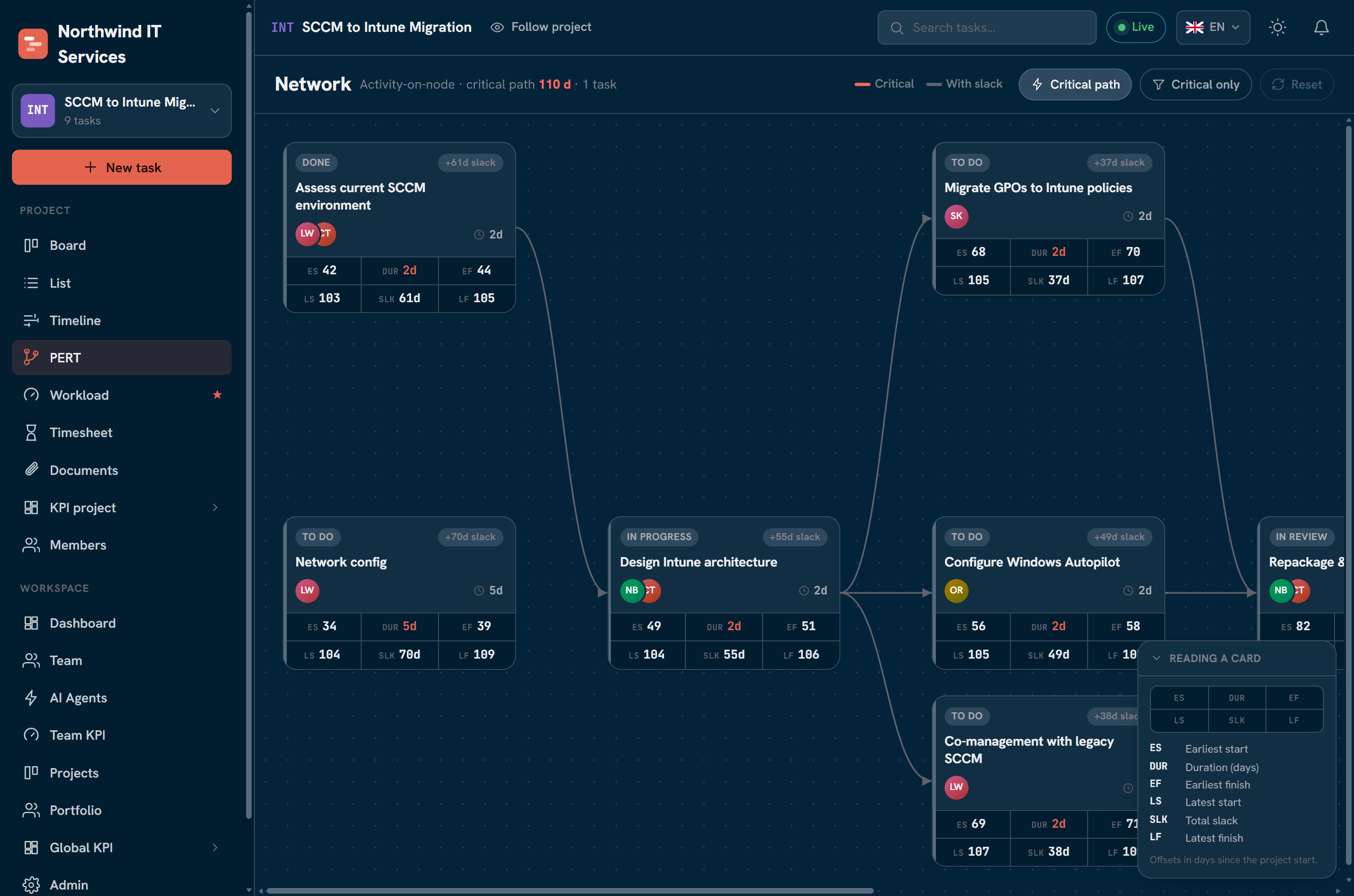
Each link can carry a lag in days, and milestones mark zero-duration checkpoints. The schedule engine runs a full Critical Path Method (CPM) computation: a forward pass to find each task's earliest start, then a backward pass to find its latest start. This yields the total slack per task (how much it can slip without delaying the project) and flags the tasks with no slack as critical. Links can be created and deleted directly on the timeline, and a server-side check rejects any link that would create a cycle.
The same schedule also reads as a PERT network (activity-on-node): every task becomes a node carrying its earliest and latest dates, duration and slack, linked to the others by dependency arrows, so the critical path stands out at a glance.
Time & reporting
Time tracking records how long work actually takes against the estimate, and reporting turns those records into insight.
Time entries
Estimated and actual hours per task. Overtime is declared explicitly by the person, entered as a sub-portion of an entry and never derived automatically, so each individual controls how much overtime they report and on which task.
Personal weekly timesheet
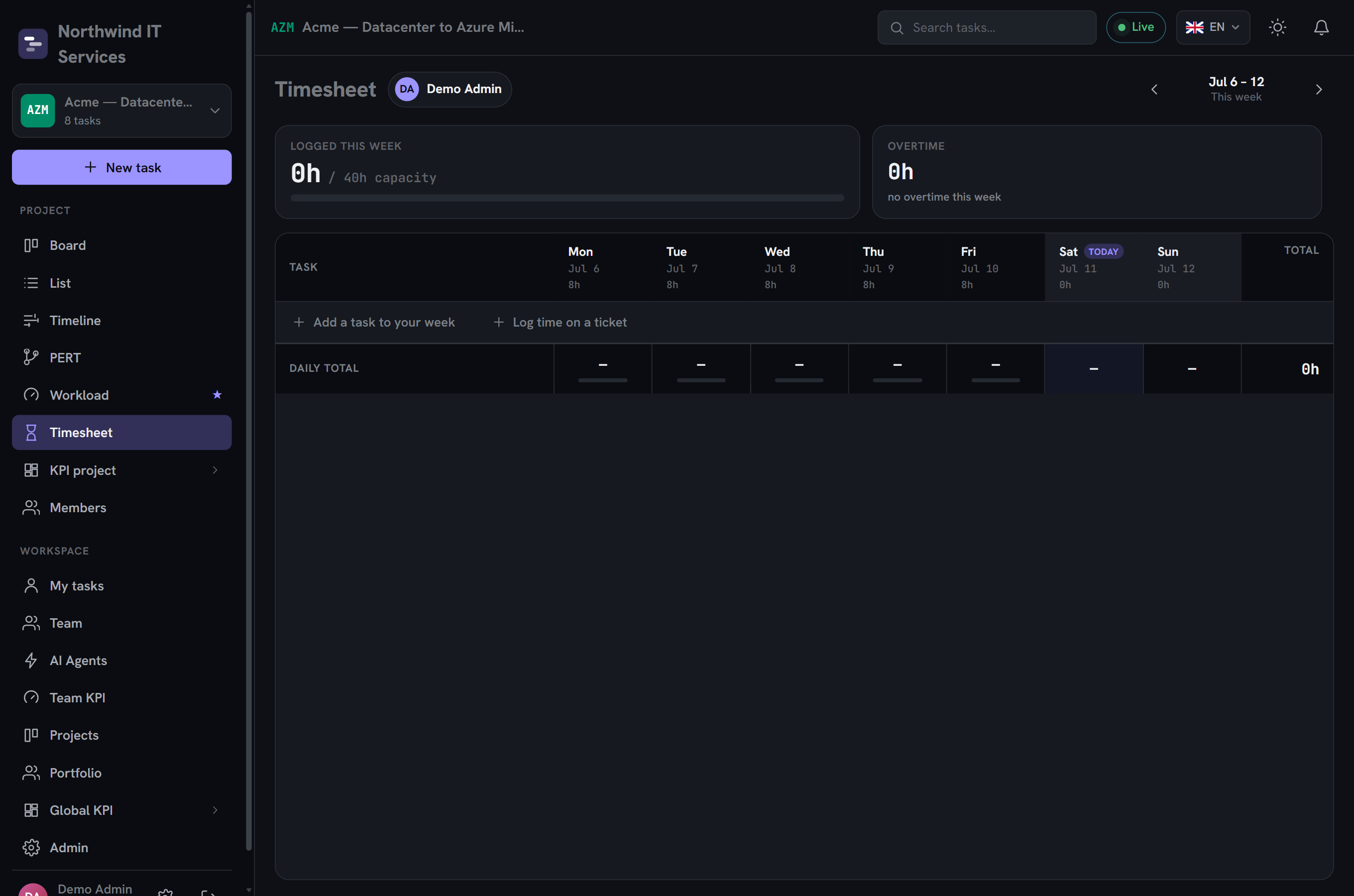
A strictly personal grid of tasks by day showing daily capacity, planned allocations, actual time, overtime, and time off / public holidays. Each person sees only their own, and the window is capped to a few weeks.
Reporting
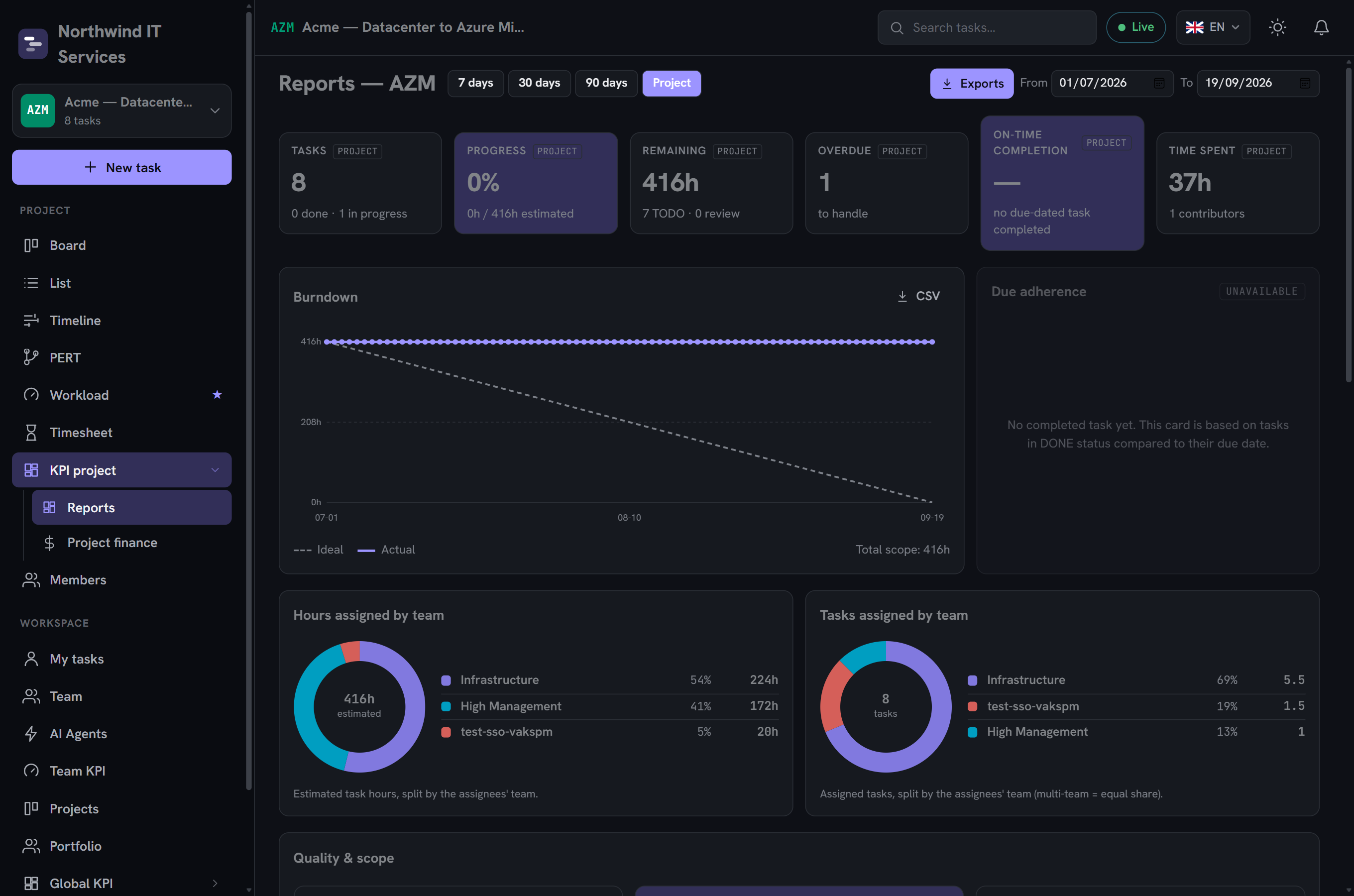
Project key performance indicators, a burndown chart, due-date adherence, and a time breakdown by project, user or label.
Client status report (PowerPoint) shipped
A client-facing PowerPoint export: overall status (health), a summary written by the project manager, progress, milestones, next steps and risks — with native charts (progress, deadlines, burndown). Deliberately without logged time, internal costs or AI-agent details. With no template, a Vaks-branded deck is produced; an organization can supply its own in its brand. See Document templates.
Exports. Every report can be exported as CSV (plain-text tabular), XLSX (a styled multi-sheet Excel workbook with a frozen header, banding and auto-filter), or a formatted PDF (a printable, branded document with KPI cards, paginated tables and server-rendered charts: a burndown line, a due-date donut and horizontal bar charts). The PDF rendering is fully server-side, with no headless browser involved. Finally, a client-facing status report can be exported as PowerPoint — a Vaks-branded deck by default, or your organization's own .pptx template: see Document templates.
Workload & planning
Workload management answers "who is doing too much, who has room" by comparing each person's capacity to the work assigned to them, day by day. It is built from three concepts:
- Work schedules: a weekly capacity per person (hours for each day Monday to Sunday, plus an occupancy rate). A default schedule (8 h, Monday to Friday) is created automatically on first use and can be edited per person.
- Allocations: a commitment of a person to a task over a date range, expressed in hours per day. Allocations are what fill capacity.
- Time off: typed, dated absence ranges (leave, sickness, and the like). Capacity drops to zero across a time-off range.
The workload view is a people-by-days grid that aggregates capacity against allocated hours and colour-codes each cell (free / ok / warning / overloaded). An allocation can be dragged onto another person to reassign it.
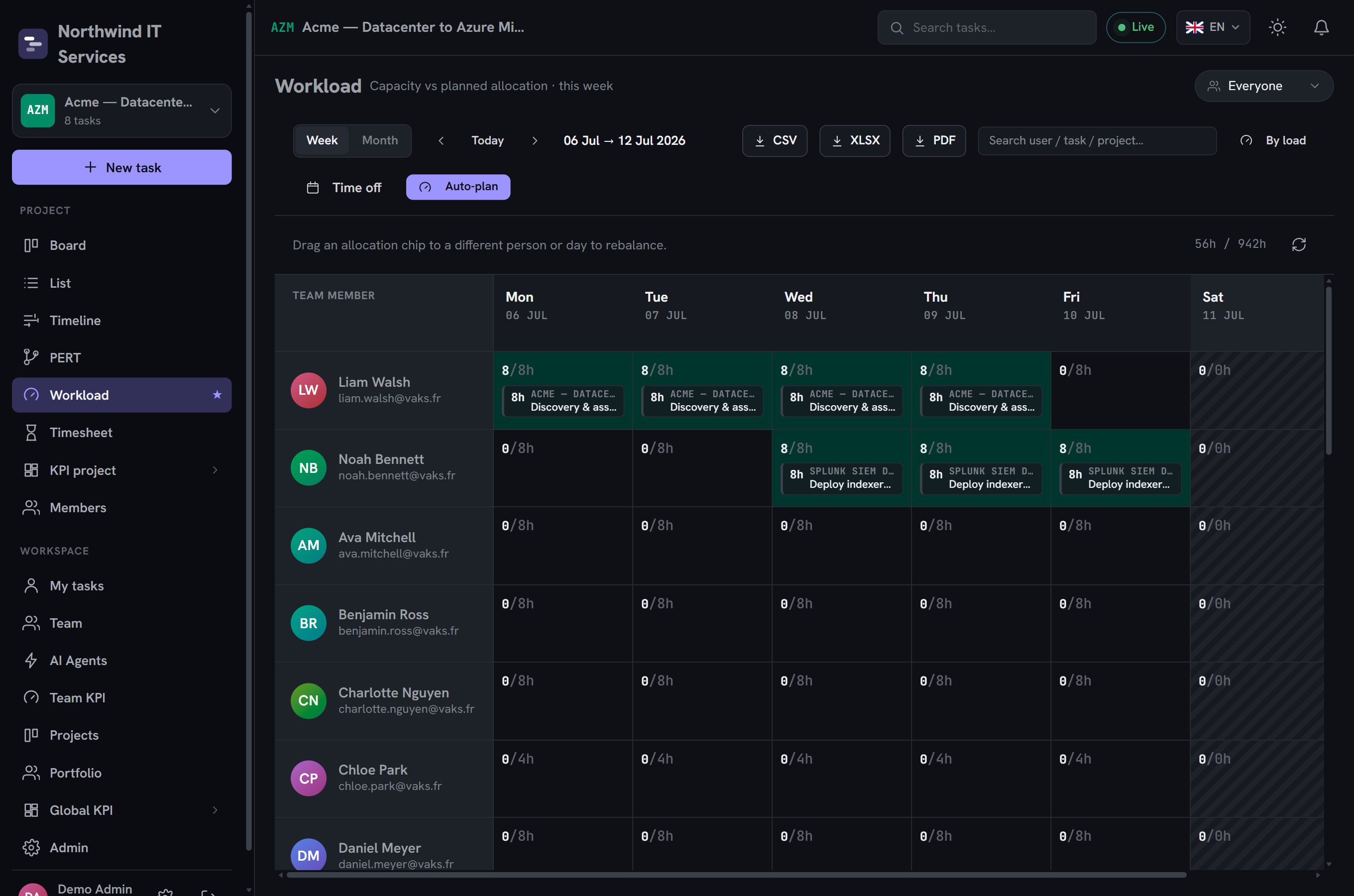
8/8h), with draggable allocation chips, load color-coding, a week selector, exports and an auto-planning button.Public holidays by country
The product ships a catalog of public holidays keyed by ISO country code (for example FR, US). An organization sets a default country, with optional per-user overrides. On a public holiday, daily capacity is zero, and the user interface shows warnings when a task's start or due date falls on one.
Auto-planning
Auto-planning derives allocations automatically for a project's whole scope, so a manager does not have to place every commitment by hand. It combines four mechanisms:
| Mechanism | What it does |
|---|---|
| Topological order | Tasks are scheduled respecting their dependencies: a prerequisite is always placed before its successor. This is a hard constraint. |
| Weighted priority score | Within the allowed order, tasks are prioritized by a normalized, weighted score (business priority, critical-path position, number of dependents, deadline urgency, skill match). |
| Slack-based levelling | The real slack from the CPM computation drives levelling: tasks with plenty of slack yield early capacity to tight, time-critical tasks. |
| Assisted assignment | Optionally, the planner also chooses who does each unassigned task, scoring candidates by required-skill match and genuine free capacity, then covering the work with as few people as possible. |
Auto-planning is idempotent (re-running it on the same scope yields the same plan), it freezes the past (it never touches allocations that have already started), and it offers a preview before applying so the plan can be reviewed and adjusted. A task's remaining hours are split across its assignees in proportion to each person's free capacity, not divided equally.
Splitting a task across several people (auto-split)
At the scale of a single task rather than a whole project, auto-split automatically spreads a task's remaining hours into allocations across its date window, without laying them down one by one. On a single-assignee task, those hours are simply spread over that one person. On a task with several assignees, the project manager additionally chooses how to split them, by strategy:
| Strategy | Split |
|---|---|
| Proportional | Each person's share is proportional to their actually free capacity over the window — the most available person gets the largest share. |
| Equal | The total is divided equally across assignees, regardless of their respective availability. |
| Greedy | Fills the most available people first, to involve the fewest people possible rather than spreading the work thin. |
Each person is filled up to their own daily capacity (with an optional cap). If even a split across every assignee cannot meet the task's deadline, the tool flags it and estimates how many additional people it would take, rather than silently producing an unworkable plan.
Collaboration
- Comments & @mentions: threaded comments on tasks; mentioning a person with
@notifies them. - Attachments: files attached to tasks and comments, stored in the self-hosted S3 object store via short-lived pre-signed URLs, so file bytes never pass through the application server.
- Real time: changes propagate live between clients over a WebSocket channel (a bidirectional real-time connection between browser and server), one room per project, authenticated by the user's JWT at connection time.
Project documents shipped
Beyond attachments hung off a single task or comment, every project has its own document space: a place to keep deliverables, meeting notes, transcripts, or anything that documents the project as a whole rather than one specific task. Files live in freely created folders — no categories imposed by the product — and are stored in the same self-hosted S3 object store as attachments.
Deliberately open governance: any member with access to the project can create folders, upload files and delete them, with no permission beyond project access itself required. Deleting a folder never deletes its contents: the files and sub-folders it held move up to the parent folder.
Context readable by AI agents
A document can be flagged as AI context. Flagged documents are exposed, read-only, in the work context an agent consults before handling a task (see AI agents) — an agent can read a context document's text content (up to 64 KB) alongside the project brief and its task's acceptance criteria, with no file ever copied elsewhere. This is a distinct, complementary mechanism to the SharePoint or Google Drive context for agents (see Collaboration spaces): one reads documents native to Vaks PM, the others read the files exposed by the Microsoft Teams or Google Chat space provisioned for the project.
Clients & teams
Clients & contacts
Full management of client companies and their contacts, linkable to projects, behind dedicated permission scopes.
Teams
Groups of people with one or more leads, the skills the team covers, and assignment to projects.
User CSV import
Bulk creation of users from a CSV file.
Team-level project access. Assigning a team to a project grants every member of that team an inherited access level on the project (Contributor by default) through a single team-access entry, in addition to any directly added members. This keeps project membership in step with the organization's team structure.
Sponsors & announcements shipped
A project often has stakeholders who need to be kept informed without being assigned a task or running the project day to day: a sponsor on the client side, a steering committee. Vaks PM gives them a dedicated status and communication channel, distinct from the usual RBAC roles.
The sponsor tag
Any project member can be flagged as a sponsor. It is an audience label, not a role: it grants no additional permission and is orthogonal to the person's permission on the project (the same pattern as a team's "lead" tag). A project manager toggles the tag from the project's access tab.
Announcing a change
An announcement is a one-off message addressed to a project audience — for example telling sponsors about a scope change. The content (title and body) is free-form, but it travels inside a server-fixed envelope: a preformatted email subject, an automatic attribution line ("Sent by X", or "… via the AI assistant" if the message came through the AI connector), an escaped body to prevent misleading formatting, and no clickable URLs. There is only one possible action button, the one the server adds — never a link supplied by the author.
The audience is never a hand-typed list of addresses: it is resolved server-side by role on the project (project manager, members, watchers, sponsors), which rules out sending an internal communication to an external address by typo. The author is automatically excluded from their own announcement. A two-minute cooldown applies per author and per project to prevent an accidental burst.
The sponsor feed
Beyond one-off announcements, a project can notify its sponsors automatically on a handful of chosen events, independently of the general automation rules:
| Event | Default | Content |
|---|---|---|
| Milestone reached | On | A project milestone moves to Done. |
| Project status changed | On | The project changes status (for example moves to On hold or Closed). |
| Milestone at risk | Off | Sponsors are added to the recipients of the "Milestone at risk" automation rule whenever it fires. |
| Budget threshold | Off | A budget threshold is crossed — presented qualitatively ("the project has crossed a budget threshold"), never with an amount: figures remain reserved for holders of the finance permission. |
The sponsor feed is configured from the project's access tab and runs through the same chokepoint as every other alert: cooldown, quiet hours and the kill switch all apply normally.
Skills
The skills capability records what competencies people have, what projects require, and what teams cover, feeding staffing and workload decisions. It centres on a per-organization skills catalog.
Catalog & packs
The catalog is populated from modular packs, curated sets grouped by technology or domain (for example AWS, Azure, GCP, backend, frontend, mobile, data/AI, devops, security, methodology, project management, HR, marketing). An administrator applies the packs relevant to the organization. Packs can be re-synchronized or removed, and applying a pack never resurrects a skill an administrator deleted unless explicitly forced. Custom packs can also be registered through the API, scoped to the organization, with no redeploy.
Levels, requirements & coverage
- Per user: each person's skills and proficiency levels.
- Per project: the skills a project requires.
- Per team: the skills a team covers. The skills assignable on a project default to the union of its assigned teams' skills, falling back to the full catalog if no team is assigned.
Skill requests & gap analysis
- Skill requests: a project manager can flag to a team lead that a competency is missing (types: assignment, training, external hire; statuses OPEN / ACK / RESOLVED / REJECTED). The lead is notified by email and a webhook is emitted.
- Gap analysis: the system evaluates whether the assigned people genuinely have free capacity to cover a project's required skills over its schedule, not merely whether the skill exists somewhere. Facing a gap, two concrete actions: open a skill request, or plan this split — directly assign the missing qualified people and lay down their allocations through auto-split (greedy strategy, to involve as few people as possible).
Finance
The finance capability turns logged time and costs into budget and margin tracking, project by project and across the portfolio.
- Billable flag: billability is set at the project level (
Project.billable), so all of a project's work is consistently billable or not. - Three-level rate resolution: for any person on a project, the applicable cost/bill rate is resolved in order, an explicit project rate first, then the user's default rate, then the project default. The chosen source is shown in the interface so the figure is always explainable.
- Budgets & margin: each project has a budget. The product computes a real margin (from actual labour and non-labour costs) and a forecast margin (from planned allocations and forecast revenue), so a project can be steered before and after the fact.
- Non-labour costs: licenses, hardware, cloud, subcontracting and similar expenses are recorded against a project.
- Billing export: a line-by-line timesheet export (including external tickets) suitable for invoicing, available as CSV and XLSX behind a finance permission.
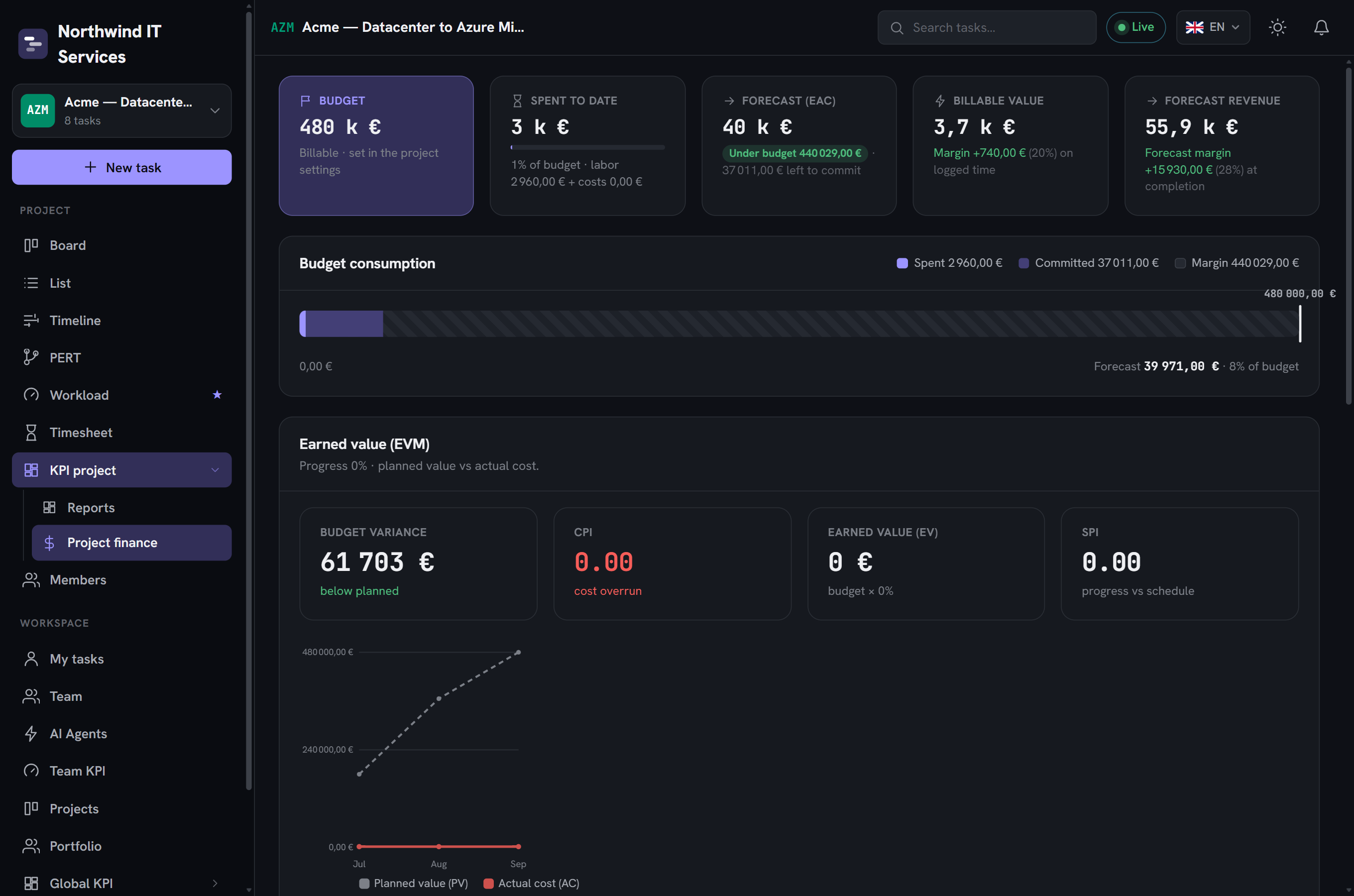
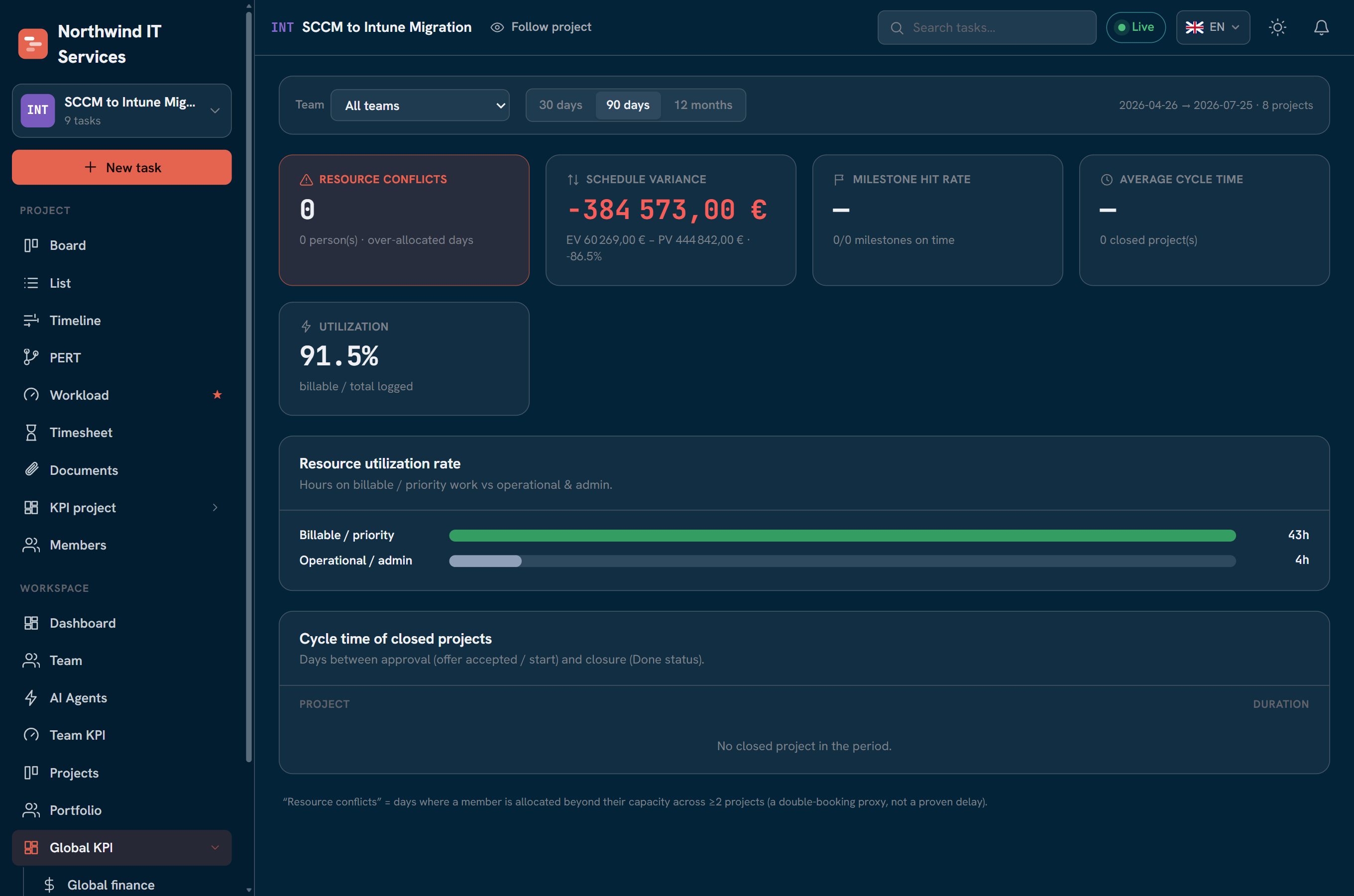
Above per-project finance, a portfolio view aggregates delivery indicators across all projects over a period: schedule variance (earned value vs planned value), milestone hit rate, average cycle time, billable utilisation and resource conflicts.
External tickets
External tickets let people log time against work items that live in another tool, a ticketing system such as Jira or ServiceNow, without leaving Vaks PM. They are deliberately timesheet-only: an external ticket can be logged against, but it never appears on boards, in the Gantt, in workload or in reports, and it cannot have allocations, dependencies or manual subtasks.
How it works: tickets from a given tool are grouped into hidden container projects (one per tool, optionally per client), so they never clutter the real project list. A stored ticket is identified by a generic triplet: its source (the tool), its key (the human ticket id such as INC0010023) and an optional URL back to the source. The same ticket is recorded once (idempotently) and then appears as a row the user can log hours against. To pull tickets from a live system, see External connectors.
Single sign-on (SSO) OIDC SAML License
SSO lets users sign in with their existing corporate identity instead of a password held by Vaks PM. The identity provider performs the authentication, including any multi-factor and conditional-access policies it enforces, and returns a signed assertion the application trusts. Two protocols are supported: OIDC (the recommended method, used with Microsoft Entra ID) and SAML 2.0 (for environments standardized on SAML).
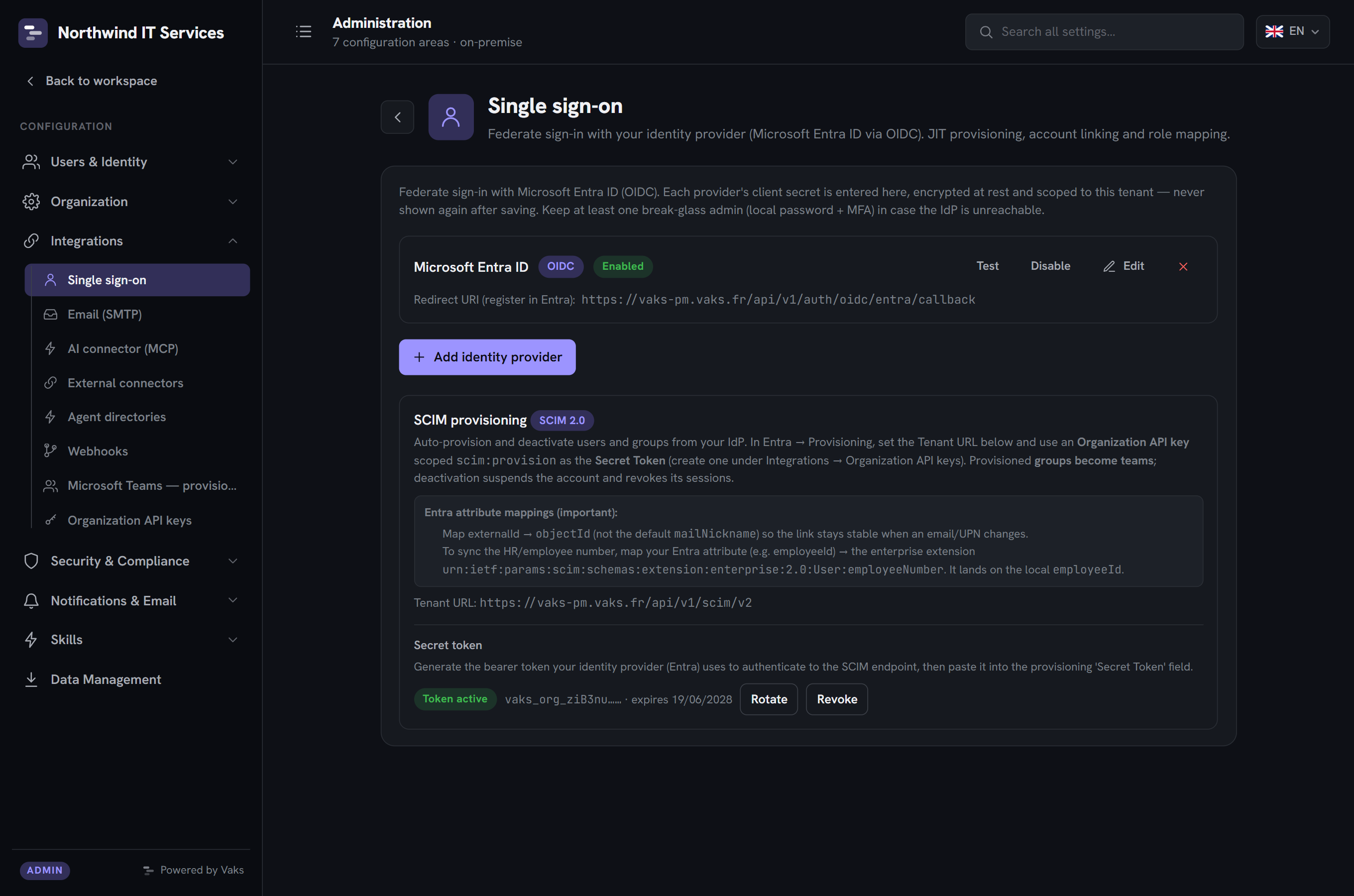
What it provides
- Just-in-time (JIT) provisioning: an account is created automatically on first successful sign-in (configurable; it can instead be required to exist beforehand).
- Role mapping: groups (or app roles) asserted by the identity provider are mapped to Vaks PM roles, so access rights follow the directory. The mapping is re-evaluated at every sign-in, and a sign-in that returns no groups never demotes a user, to prevent lock-out.
- Account matching: returning users are matched on a stable identifier (the Entra object ID) rather than on email, so a renamed or re-created directory entry cannot take over an existing account.
- Break-glass access: designated local administrator accounts can still sign in with a password and forced MFA, so the organization is never locked out if the identity provider is unavailable.
Initial state & enablement
A fresh instance runs on local accounts; SSO is configured afterward under admin area → Single sign-on. For OIDC with Microsoft Entra ID the outline is:
- Register an application in Entra and record its redirect URI (the address Entra returns the user to after authentication).
- Create a client secret in Entra and copy it (shown once) — or, as an alternative, register a certificate to authenticate with no shared secret (see the note below).
- Configure the claims, API permissions and the groups (or app roles) that will drive role mapping.
- Create the provider in Vaks PM with the Entra discovery URL, client ID and client secret (or certificate); set the role-mapping rules and the JIT behaviour.
- Test sign-in, then enable the provider.
Automated provisioning (SCIM) RFC 7644 License
SCIM lets the identity provider keep Vaks PM accounts in sync automatically, so administrators do not create or disable users by hand. The directory pushes changes to a Vaks PM endpoint whenever a user joins, changes or leaves. It is typically paired with OIDC so that authentication and lifecycle are both directory-driven.
- Users: creation, attribute updates, suspension and reactivation. Suspending a user in the directory deactivates the account here, revokes its sessions and releases its licence seat; re-provisioning reactivates it.
- Groups → teams: directory groups are synchronized to Vaks PM teams, including their membership.
- Enterprise attributes: standard SCIM user and enterprise-extension attributes are mapped to the corresponding fields.
Enablement: the admin area generates a SCIM secret token and the tenant SCIM URL; in the directory, a provisioning configuration uses that URL and token, with the in-scope users and groups assigned. An on-premises provisioning agent is supported for instances that are not publicly reachable.
Email notifications delivered
Vaks PM sends branded email notifications when relevant events occur. Delivery is asynchronous: messages are queued and sent by the background worker, so a slow mail relay never blocks the application.
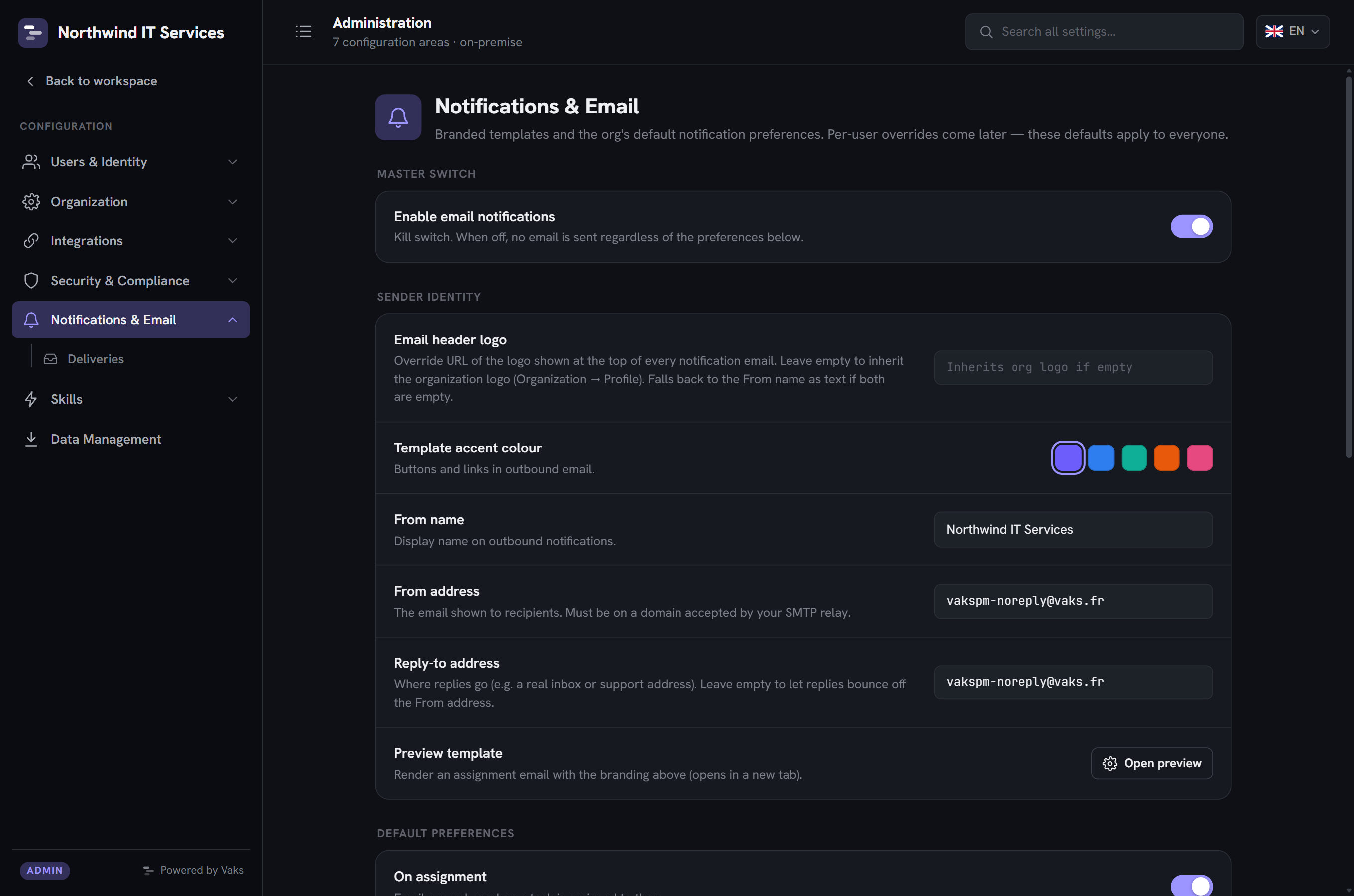
Events covered
- Assignment: a user is assigned to a task.
- Status change: a task a user is involved in changes status.
- @mentions: a user is mentioned in a comment.
- Due-date reminders: sent a configurable number of days before a task is due.
- Digest: a daily or weekly summary at a chosen hour.
- Operational alerts: for example skill requests and audit alerts.
Configuration
| Setting | Description |
|---|---|
| Kill switch | A single toggle to suspend all outbound email instantly. |
| SMTP connection | Host, port, encryption and authentication mode. The SMTP password is stored as a protected secret, not in the database. An anonymous relay (no credentials) is supported. |
| Branding | Logo, accent colour, the From address and an optional Reply-To, applied to every template. |
| Per-event preferences | Enable or disable each event type independently. |
| Due-date lead time | How many days before the due date a reminder is sent. |
| Digest hour & quiet hours | When digests go out, and a window during which no mail is sent. |
| Localization | Each message is localized to the recipient's language. |
A Send test email and a Preview template action validate the configuration without waiting for a real event, and a delivery log records each message and its outcome. Notifications are optional: with no SMTP relay configured, the application runs normally, and only outbound notifications are unavailable.
Automations delivered
Automations are monitoring rules that ship with the product. They continuously watch tasks, schedule, workload, timesheets, budget, skills and AI agents, and alert the right people when a situation drifts. There is no rule builder in the Zapier sense: an administrator composes nothing, and instead enables or disables ready-made rules and tunes their thresholds. The intent is deliberate — not an empty canvas to fill in, but a set of guardrails that work on day one.
The vast majority of rules are pure notification: they change no status, reassign no task, delete nothing. What they produce is a signal addressed to someone who can act. A small, explicitly named set of rules — detailed under Automatic actions below — are the exception and do write, but always narrowly, reversibly and traceably: never a deletion, never reassigning a person.
How a rule fires
Three cadences coexist, and every rule belongs to one of them:
- Hourly — evaluated every hour. Reserved for what must be seen quickly (an AI agent's budget, a deliverable waiting for review).
- Daily — evaluated once a day, at an hour the organization chooses (daily run hour, 07:00 UTC by default). Most of the catalogue lives here.
- Weekly — evaluated on a chosen weekday and hour (Friday 16:00 UTC by default), and always covering the elapsed week, never the current one.
Three rules follow no clock at all: they react to the event, within a second of the action that concerns them (a task is created, a time-off is entered, an auto-plan is applied).
What keeps alerts from flooding
A rule that repeats the same alert every day stops being read. Four mechanisms prevent that:
| Mechanism | Effect |
|---|---|
| Cool-down | A given alert is not repeated for the same entity before a delay specific to the rule: 24 hours for hourly and event-driven rules, 7 to 8 days for most daily and weekly rules, 30 days for budget tiers. A budget tier already reported stays quiet until a higher tier is crossed. |
| Quiet hours | Automations honour the quiet-hours window configured for notifications. An alert landing in that window is deferred, not lost. Worth knowing: if the daily run hour itself falls inside quiet hours, daily rules produce nothing. |
| Per-run cap | At most 50 alerts per rule per organization on each pass. An overflow (on first activation against a loaded history, for instance) is spread over later passes rather than dumped at once. |
| Kill switch | A single switch suspends every automation for the organization, without touching notifications or business webhooks. |
Rule catalogue
Rules that default to Off are no less reliable: they are simply more context-sensitive (what is noise at one customer is signal at another), and so deserve an explicit choice.
Task hygiene daily
| Rule | Trigger | Recipient | Settings | Default |
|---|---|---|---|---|
| Dormant on-hold task | An On hold task has not moved for N days. | Project managers | N (5 d) | On |
| Overdue task | The due date has passed and the task is not done. A grace period avoids alerting on the very day. | Assignees + project managers | Grace days (0) | On |
| Inactive in-progress task | An In progress task has had neither an update nor logged time for N days. | Assignees, else project managers | N (7 d) | On |
| Unassigned task lingering | A To do task stays unassigned more than N days after creation. | Project managers | N (3 d) | On |
| Task blocked by external provider | A task flagged as blocked by a third-party provider has stayed blocked for more than N days. | Assignees + project managers | N (5 d) | On |
| Allocation window missed | An allocated task's planned window (its last allocation's end date) has closed more than N days ago and the task never left To do. | Assignees + project managers | N (1 d) | On |
Deadlines & schedule
| Rule | Cadence | Trigger | Recipient | Settings | Default |
|---|---|---|---|---|---|
| Milestone at risk | daily | An unfinished milestone comes due within N days while at least one of its predecessors is not done. | Project managers | N (7 d) | On |
| Plan overflow | event | An auto-plan has just been applied and produced at least one deadline overflow. A preview triggers nothing. | Project managers | — | Off |
| Inactive project | daily | An active project has seen no activity — no task, no time, no comment — for N days. | Project managers | N (14 d) | Off |
| Project ending soon | daily | An active project's end date is less than N days away while tasks remain open. | Project managers | N (7 d) | On |
Workload & capacity
| Rule | Cadence | Trigger | Recipient | Settings | Default |
|---|---|---|---|---|---|
| Overload | daily | Over the next 7 days, a person's allocated load reaches X% of their available capacity. | The person's team leads, else administrators | X (100%) | On |
| Underload | daily | Over the next N weeks, a person is allocated below X% of capacity — a staffing signal. | Team leads, else administrators | X (50%), N (2 wks) | Off |
| Time-off conflict | event | A time-off entry overlaps allocations already planned. One alert per affected project. | Managers of the affected projects | — | On |
Timesheet weekly
These three rules share the same weekly appointment (the weekday and hour set for the timesheet reminder) and cover the elapsed ISO week.
| Rule | Trigger | Recipient | Settings | Default |
|---|---|---|---|---|
| Timesheet reminder | Time logged over the elapsed week covers less than X% of available capacity. | The person themself | X (80%), weekday (Friday), hour (16:00) | On |
| Overtime spike | Overtime declared over the week exceeds N hours. | Team leads, else administrators | N (5 h) | Off |
| Low utilization | The share of logged time on billable projects falls below X%. The ratio is measured per person: since billability is an attribute of the project, a per-project ratio would always be 100% or 0%. | Team leads, else administrators | X (60%) | Off |
Finance daily
| Rule | Trigger | Recipient | Settings | Default |
|---|---|---|---|---|
| Budget tier | A project's actual cost crosses a budget tier. Each tier alerts once: going past 80% then 120% produces two distinct alerts, not a repeat of the 80% one. | Project managers, else administrators | Tiers (80%, 100%; up to 5) | On |
| Forecast overrun | The forecast cost at completion exceeds the budget while actuals have not yet reached 100% — so the alert arrives before the overrun, not after. Silent if the 100% tier has already spoken. | Project managers, else administrators | — | On |
Skills event
| Rule | Trigger | Recipient | Settings | Default |
|---|---|---|---|---|
| Skill gap on creation | A task is created with a required skill that nobody in the project pool — direct members and members of assigned teams — covers at the requested level. Expired skills do not count. | Project managers | — | On |
AI agents hourly
| Rule | Trigger | Recipient | Settings | Default |
|---|---|---|---|---|
| Agent budget | Run cost reaches X% of an envelope. Four scopes are watched separately: agent × day, agent × month, a project's agent budget, a task's agent budget. The alert deliberately precedes the hard block, which refuses the claim at 100%. | Agent scopes: the agent's owner, else AI administrators. Project/task scopes: project managers. | X (80%) | On |
| Deliverable awaiting review | A deliverable has been waiting for review for more than N hours and has not been superseded by a newer version. | Project managers | N (24 h) | On |
Automatic actions (mutations)
Every rule above only alerts. Three rules, and three only, act on a task in a human's place — always narrowly and reversibly, never deleting or reassigning a person:
| Rule | Trigger | Effect | Guardrail | Default |
|---|---|---|---|---|
| Priority bumped | The "Task overdue" rule fires for a task. | The task's priority moves up one notch. | Shares the same cooldown as the alert itself; never downgrades a task already at High or Urgent. | Off |
| Parent task auto-advanced | All of a parent task's subtasks move to Done. | The parent task advances in turn (notify or advance mode, configurable). | A single mutation per event no matter how many subtasks finish together — no cascade. | Notify: On · Advance (mutation): Off |
| Automatic skill request | The "Skill gap on creation" rule fires. | A skill request is opened for the lead of the team covering that need. | The requester is a dedicated system identity, never a human; with no team covering the skill, the rule stands down instead of creating an orphan request. | Off |
An automatic action always goes through the same business service a human action would use (it never touches the database directly), carries a system actor distinct from both a human and an AI agent, and is recorded in the audit log under a dedicated action. "Priority bumped" and "Automatic skill request" are off by default: an organization turns them on explicitly once it has validated the behavior of the equivalent notification rules. "Parent task auto-advanced" ships with its notify mode already on by default — project managers are alerted as soon as the last subtask completes — while the actual status mutation (advance mode) stays opt-in.
Recurring tasks
A recurring task repeats on a chosen frequency (for example every week, or on the 1st of the month): at each due point, a new occurrence is created automatically from the same template, without a project manager having to recreate it by hand. Configuration lives on the task detail — frequency and weekday or day of month — and does not apply to subtasks or external tickets.
Watching a task or a project
The natural recipient of an alert is whoever the rule designates — the assignee, the project manager, the lead. That leaves out someone who needs to know without being accountable: a sponsor, an architect, a technical lead consulted on one specific topic.
The Watch button, on a task or a project, answers that need. A watcher is a passive subscriber: they receive every automation alert concerning what they watch, plus status changes and new comments — without being assigned, without extra rights, and without owing anyone anything. Watching stops with one click, and the account page lists what one watches.
Where alerts go
Every alert travels three independent channels:
- Email — a branded message, localized in the recipient's language, through the same chain as other notifications. The email kill switch cuts this channel alone.
- Webhook — an
automation.alertevent pushed to subscribed webhooks, with the rule as its discriminant. Inteamsformat the alert arrives as a readable card in the project or team channel: the recommended route for organizations that live in Teams and do not want one more channel. - Audit log — every automatic action is recorded with a system actor, distinct from a human and from an AI agent. An alert is therefore always explainable after the fact: who received it, why, and when.
These channels do not substitute for one another: cutting email cuts neither the Teams cards nor the audit trail.
Administration
Everything is configured under Admin › Automations, organized into cards by family (task hygiene, deadlines, workload, timesheet, budget, projects, agents). Each rule exposes its switch and its thresholds; out-of-range values are rejected on entry rather than silently applied. Global settings — kill switch, daily run hour, weekday and hour of the weekly appointment — sit at the top of the section.
A Run now action triggers an immediate evaluation without waiting for the scheduled hour, and returns the count of what was sent, held on cool-down, deferred or capped. It ignores the clocks but honours the kill switch and cool-downs — making it an honest verification tool, not a way to force a resend. Configuring automations requires the organization administration right; AI agent alerts are visible to the agent's owner and to AI administrators.
Webhooks delivered
A webhook is an outbound HTTP call Vaks PM makes to a URL of the administrator's choosing when an event occurs. It is the mechanism for pushing changes into another system (a ticketing tool, a chat channel, an automation platform) in near real time.
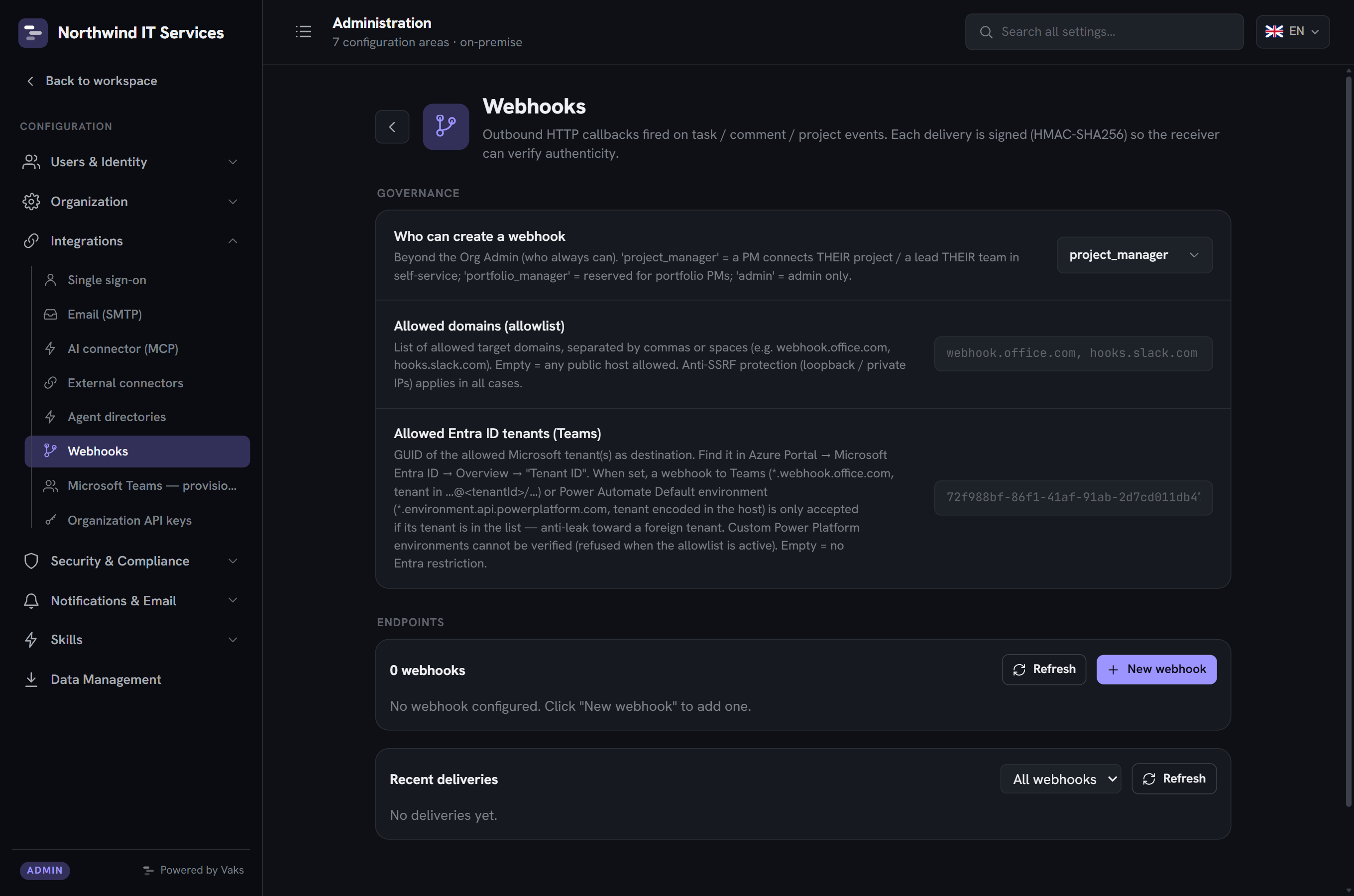
raw / teams format, secret rotation, send-test and a delivery journal with manual replay.Events & formats
A webhook subscribes to the events it wants, among:
- Tasks: the standard lifecycle (created, updated, deleted, moved, assigned, unassigned, completed) and the agent lifecycle (claimed, released, review requested, changes requested, approved — see AI agents), plus their deliverables (submitted, reviewed).
- Comments: created.
- Projects: created, updated, activated (the move to Active, distinct from a plain update — it's this trigger that Collaboration spaces providers use internally to create the project's space) and announcement (see Sponsors & announcements).
- Skill requests: created, acknowledged, resolved, rejected, reminded.
Three further system events exist outside this per-project/team subscription mechanism: an audit alert (see Audit log), a backup failure, and an automation alert (see Automations) — these three subscribe at the organization level. The payload format is either raw (the native JSON event) or teams (a Microsoft Teams / Power Automate Adaptive Card), so a channel can receive readable cards directly.
Security & signing
- Each delivery is signed with HMAC-SHA256 over the request body using a per-webhook secret, so the receiver can verify authenticity and integrity. The signature, event name, a delivery ID and a timestamp travel in request headers (
X-Vaks-Signature,X-Vaks-Event,X-Vaks-Delivery,X-Vaks-Timestamp). The secret can be rotated at any time. - Anti-abuse controls: an outbound-domain allowlist, protection against requests to internal network addresses, and automatic disabling of an endpoint after repeated failures.
- Delivery is retried several times with exponential back-off, and a failed delivery can also be replayed manually.
Scopes
A webhook can be organization-wide, or scoped to a single project or team. With a self-service policy, a project manager or team lead can manage webhooks for their own project without full admin rights. The admin interface lists endpoints, creates and edits them, rotates secrets, sends a test event, and shows a delivery journal with the payload, headers and response of each attempt plus a manual retry.
API keys delivered
API keys grant programmatic access to the public REST API (the same API the web app uses, under /api/v1). They let scripts, integrations and partner systems call Vaks PM without a browser session. Two kinds exist:
| Personal access token (PAT) | Organization key | |
|---|---|---|
| Prefix | vaks_pat_… | vaks_org_… |
| Acts as | The user who created it. Effective rights are the user's role intersected with the token's scopes, and can never exceed the user, even for an administrator. | A service identity with all scopes; actions are attributed to the administrator who created it. |
| Scopes | A chosen subset of the permission vocabulary. | All scopes (service-level). |
| Managed in | Account options → My API tokens. | Admin area → Organization API keys. |
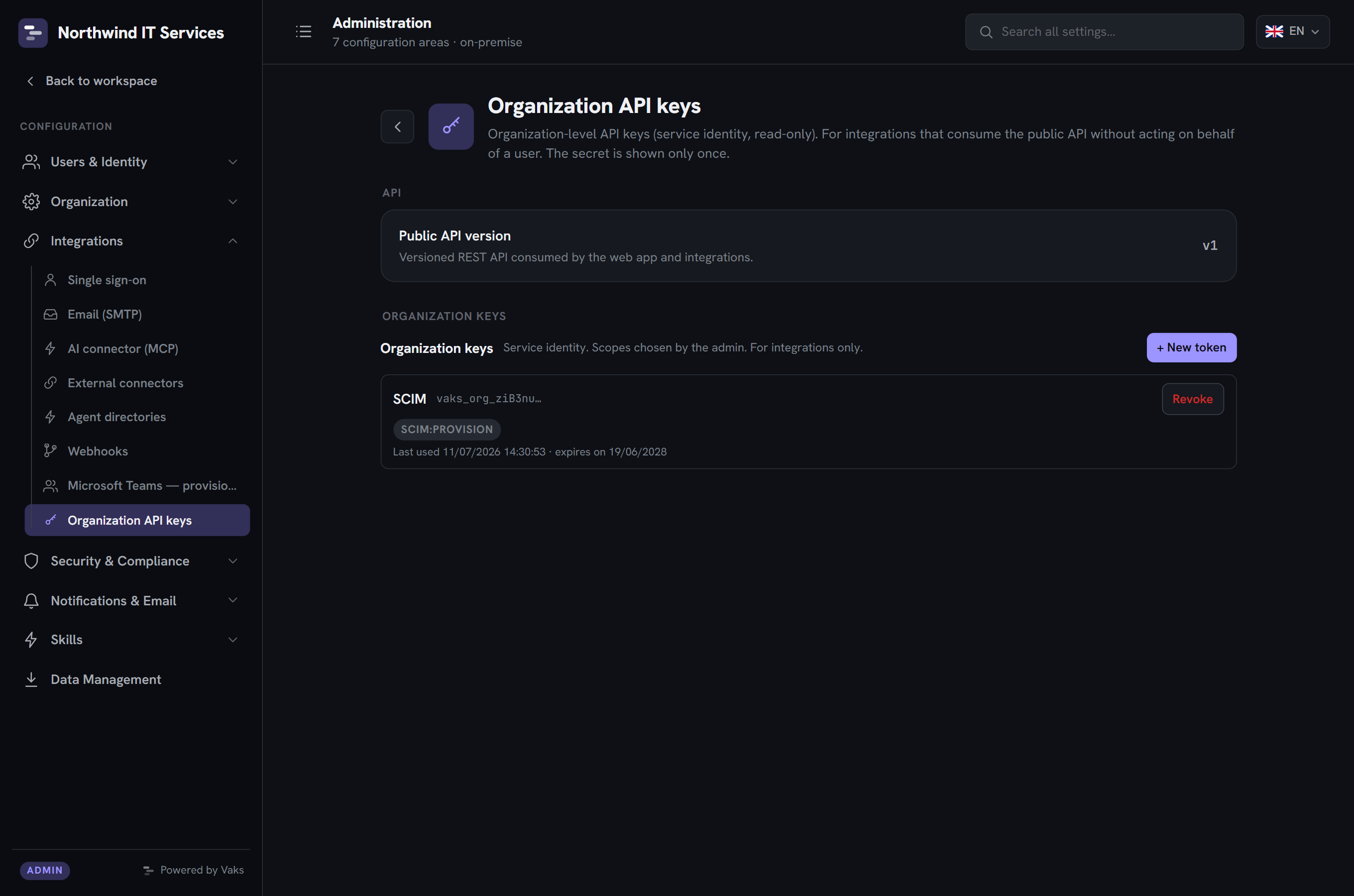
Security model
- The secret is shown once, at creation, and never stored in clear. Only a hash is kept, with a displayable prefix to identify the key afterward.
- Public-surface only: a key can call only the routes explicitly published on the public API, and is rejected on internal and private-app routes by design.
- Expiration is mandatory, capped at two years, so there are no permanent keys. An email reminder is sent 14 days before a key expires (to the owning user, or to the global administrators for an organization key).
- Rate limiting: each key has its own request budget per time window (distinct, configurable limits for IP-level, PAT and organization keys), enforced cluster-wide. A key can also be revoked at any time.
External connectors admin setup available
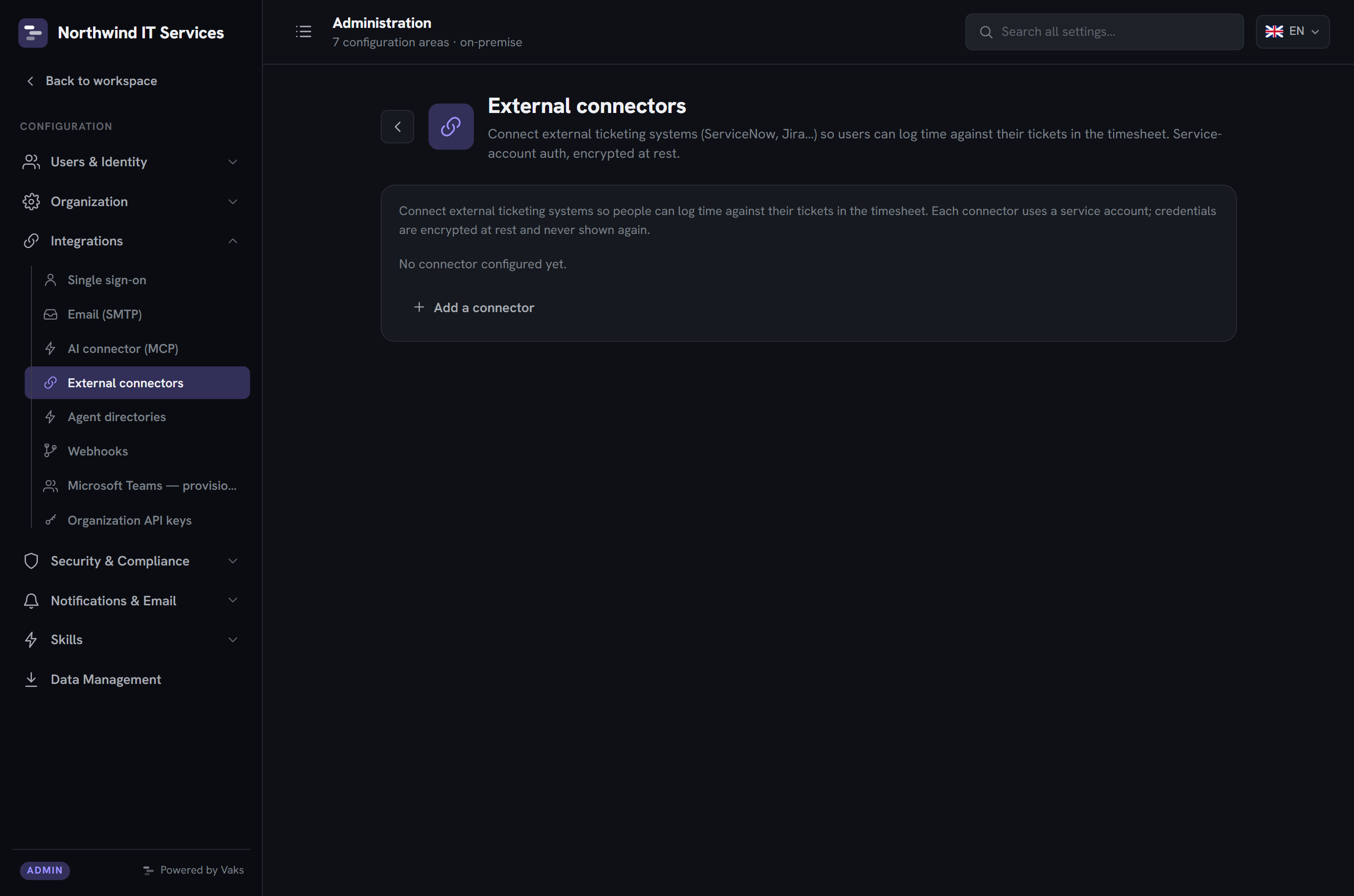
An external connector links Vaks PM to a third-party ticketing system, for example ServiceNow or Jira, so that people can record time against tickets that live in that other tool, from their weekly timesheet (see External tickets). A connector is a read-only bridge: Vaks PM fetches a list of tickets and references them, and never modifies anything in the source system.
Connectors are configured under admin area → Integrations → External connectors. Each connector authenticates with a dedicated service account whose credentials are encrypted at rest (AES-256-GCM) and never shown again after they are saved. The design is provider-agnostic: the same timesheet flow, idempotency and container projects apply to any tool, and each provider declares its own configuration fields.
Example provider: ServiceNow
The ServiceNow connector reads tickets through the ServiceNow Table API using a service account (Basic authentication), with searches scoped to the current user. Its configuration fields are the instance URL, the service-account username and password, the ticket tables to expose (incident, sc_task, change_task, problem, or the base task table), and an optional base filter (a ServiceNow encoded query appended to every search to restrict results, for example active=true). A Test action makes a lightweight authenticated call and reports success, an authentication failure, or an unreachable instance.
Collaboration spaces License
When a project becomes active, Vaks PM can automatically create a collaboration space for it through any of three self-service providers — Microsoft Teams, Slack, or Google Chat — configured independently, each in its own admin card. Provisioning is idempotent: re-activating a project never creates a second space. An external tool that manages its own space can also declare the link back instead, via a narrowly-scoped API key, without needing any of these providers configured.
Microsoft Teams is the richest of the three: a name built from a template, a configurable set of channels, and (uniquely among the three) archive on close — when the project closes the team is archived (read-only, reversible), and un-archived on re-activation. Slack and Google Chat create their space and invite members the same way, but today are not archived automatically on close. This is a premium feature (license entitlement teams-provisioning, shared by all three providers), entirely opt-in per organization.
Enablement steps (Microsoft Teams)
- Register an Entra application dedicated to Vaks PM (single-tenant is fine; no redirect URI, since this uses the client-credentials flow). Create a client secret (or a certificate, as a secretless alternative — see SSO) and note the tenant ID and client ID.
- Grant Graph application permissions. The least-privilege set is
Team.Create,TeamMember.ReadWrite.All,Channel.Create,TeamSettings.ReadWrite.Alland (recommended)User.Read.All; then have a Global Administrator click Grant admin consent. - Configure in Vaks PM under admin area → Integrations → Collaboration spaces, on the Microsoft Teams card: the tenant/client IDs and secret, the team-name pattern, channels, visibility, the membership scope (assigned teams, project members, or both), and whether to archive on close.
- Test the connection, ensure the target project has at least one Entra-linked member, then move a project to active or use Provision now.
Slack and Google Chat are simpler: a bot token (Slack) or a service account impersonating a Workspace user (Google Chat) is enough — no directory-linked member requirement, since neither needs an owner the way a Teams team does.
AI connector (MCP) Included delivered
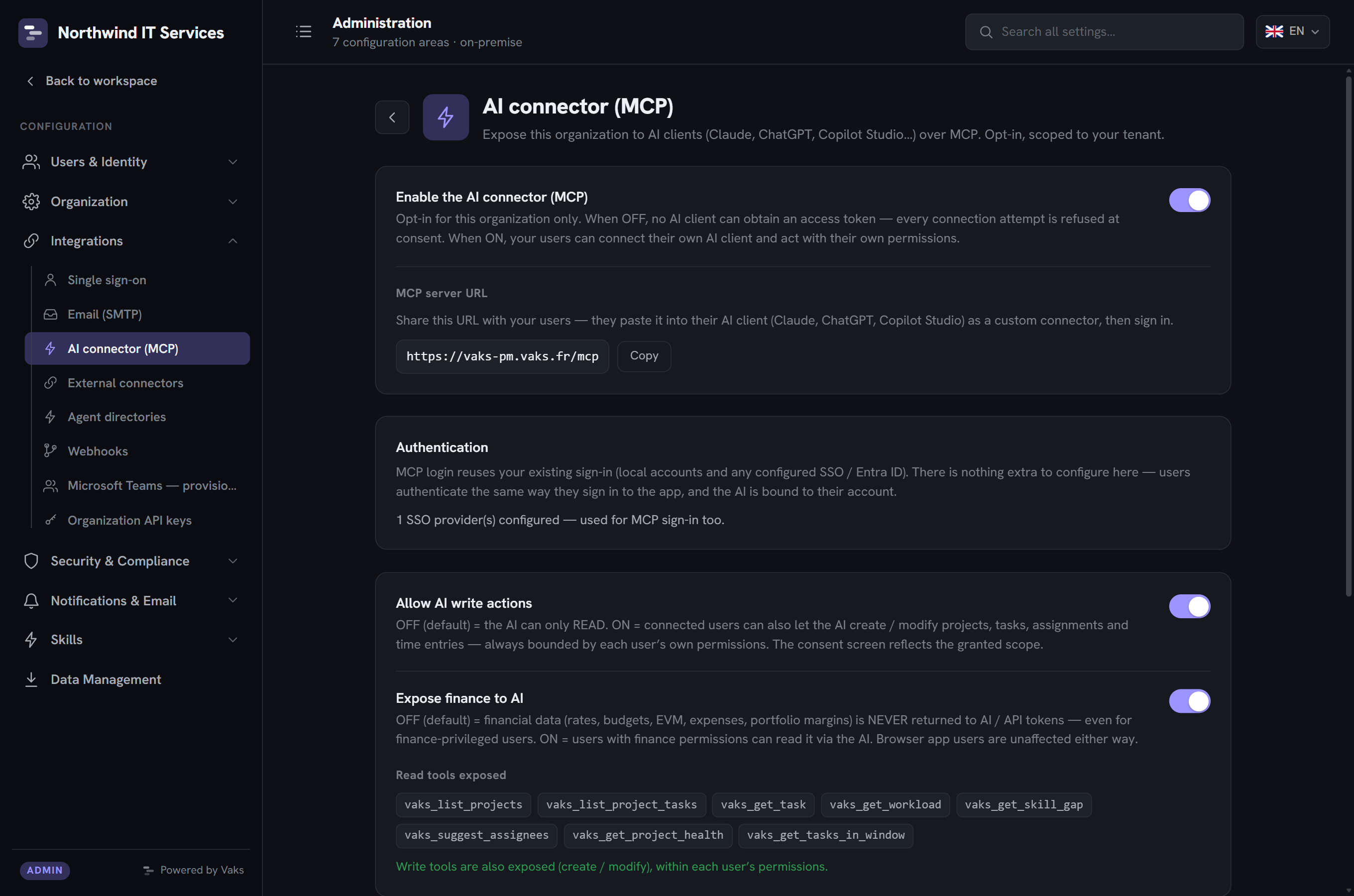
The AI connector exposes a Model Context Protocol (MCP) server: any compatible AI assistant (for example Claude, ChatGPT or Microsoft Copilot Studio) can connect to read and, if allowed, act on the organization's projects, on behalf of the signed-in user and strictly within their permissions. The product hosts no AI of its own; the intelligence lives in the client, and Vaks PM provides the data and actions. There are no AI keys to manage.
Delegated sign-in
A user adds the organization's MCP server URL (https://<organization>/mcp) in their AI client. The client detects authentication automatically and opens a browser sign-in page, where the user logs in with their usual account (local or SSO), then approves a consent screen summarizing what the AI will be able to do. Authentication uses OAuth 2.1 with PKCE (Proof Key for Code Exchange), federated to the existing identity. The issued access token is short-lived and refreshed automatically. Clients that cannot self-register (for example Copilot Studio) use a pre-registered OAuth client created in the admin area.
Admin enablement: three independent toggles
| Toggle | Effect |
|---|---|
Enable AI connector | Master switch (opt-in). Without it, no token is issued. No license required — the connector is part of the free core. |
Allow AI write actions | Off by default = read-only. On = the AI can also create and modify (projects, tasks, assignments, time…), always within each user's own rights. |
Expose finance to AI | Off by default = finance is never returned to AI/API tokens, even for a finance-privileged user. On = readable by users who hold finance permissions. |
The consent screen reflects these toggles. The connector is disabled by default and opt-in per organization; the toggles are independent and reversible. Finance writes require all three conditions together (writes enabled, finance exposed, and the user holding the finance permission). Web-app users are never affected by the finance toggle; it applies only to tokens.
AI agents delivered
An AI agent (Artificial Intelligence agent: an automated software worker driven by a large language model) is treated as a first-class actor in Vaks PM, alongside human users. An agent can be assigned work, claim tasks, produce deliverables and declare its cost — but it is governed far more tightly than a person. This section explains what an agent is, how the integration works end to end, and how an administrator provisions, governs and manages agents. It builds on the AI connector (MCP) (the transport an agent uses to reach the product) and the RBAC model.
Free up to 5 agents. Minting agent tokens by hand and the AI connector (MCP) stay free regardless of licensing; see Licensing & seats for the exact free-tier ceiling and what a license unlocks beyond it.
What agent management covers
The product supports an agent's full lifecycle: provisioning it (manually, by directory sync, or by inbound registration) and authenticating it with its own token; bounding what it may do through its capabilities; letting it pull and claim tasks, produce deliverables gated by human review, and declare its cost; governing it through agent-enabled projects, policies, euro budgets and a deliverable-verification gate (up to signed continuous-integration evidence); and managing it from dedicated admin areas, with an optional “AI administrator” grant to delegate without full admin rights.
Audit log & SIEM delivered
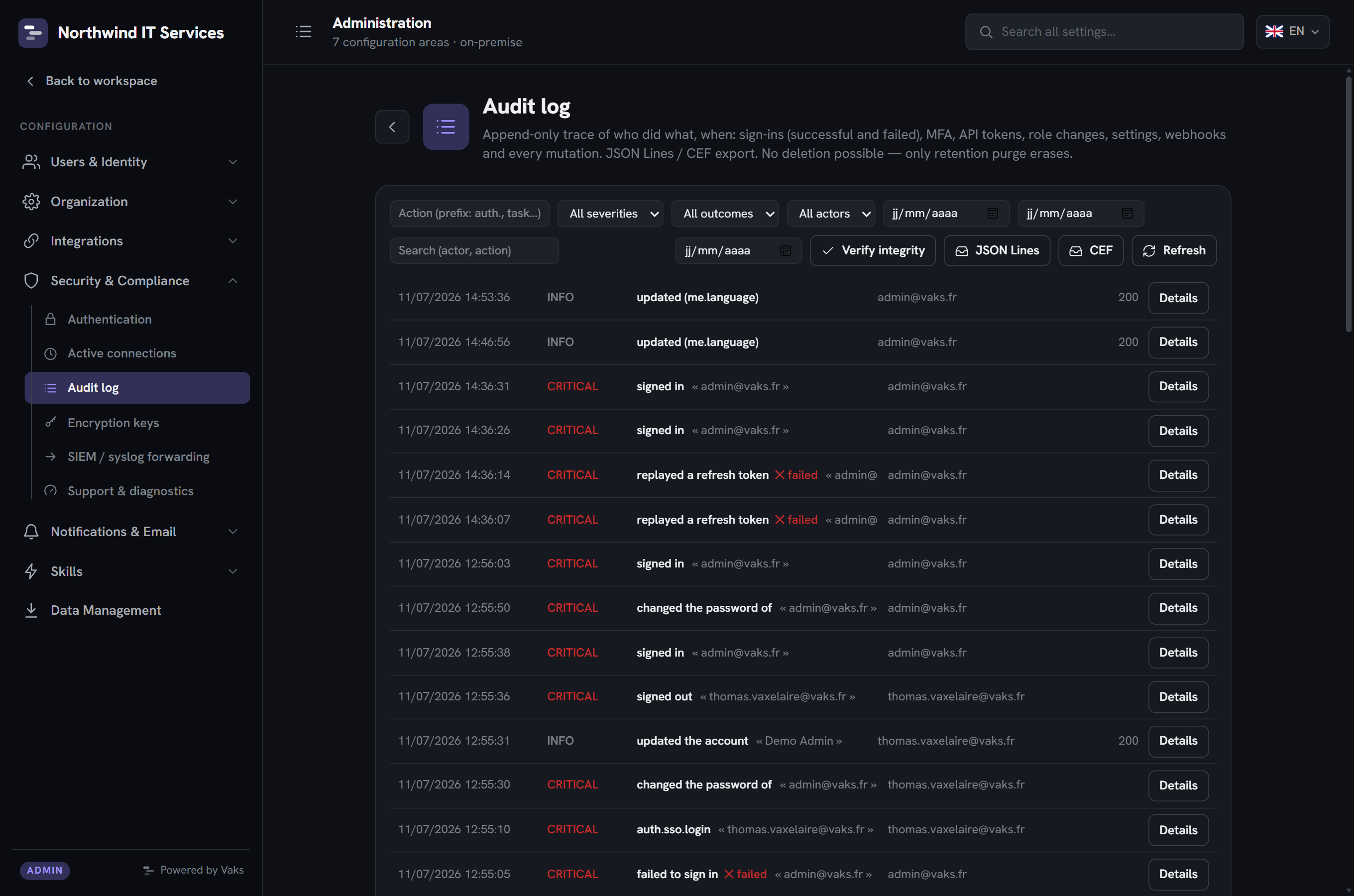
The audit log records who did what, when and from where: an append-only trail for security review, compliance and incident response. It can be read in the admin area, exported, forwarded to a SIEM, archived and verified for tampering.
Capture model
- Every authenticated mutation (create / update / delete) is captured automatically, with the action, the actor, the affected resource and a human-readable label that survives later deletion of the resource. For tasks and projects, a before/after difference is recorded.
- Critical security events are captured explicitly with extra context: sign-in success and failure (with reason and IP address), MFA events, password changes, replay of a revoked token, API-key creation and revocation, user create / suspend / delete / role change, and settings changes (with a diff).
- Sensitive values are redacted (passwords, tokens, secrets) before storage.
Reading, exporting & forwarding
- In admin area → Security & compliance → Audit log: filter by action, severity, outcome, actor, date range and free text; expand any entry; and export. Export formats are JSON Lines (core) and CEF License (Common Event Format, SIEM-friendly).
- Programmatic pull: a read-only API endpoint (scoped to an
audit:readpermission) lets a SIEM or archiving system fetch the log on a schedule with an organization API key. - Syslog push License: the log can be pushed to a SIEM in real time over syslog (RFC 5424) on TCP, optionally over TLS, with a configurable minimum severity, a connection-test button, and mutual-TLS support for collectors that require it.
Retention, archive & integrity
- Retention: entries older than a configurable number of days (default 365) are purged by a scheduled job. This is the only deletion path.
- Cold archive License: optionally, entries are written as compressed archives to the object store before purge, in a fail-safe order. If archiving fails, the purge is skipped so nothing is lost.
- Tamper evidence License: a daily integrity anchor chains a hash of the previous day's records; a verify action recomputes the chain and reports whether the stored log was altered.
- Brute-force alerting License: repeated sign-in failures within a window raise an alert (email to administrators, a webhook and an audit entry), with a cooldown to avoid floods.
GDPR: anonymization & portability
Vaks PM supports the GDPR right to erasure (Article 17) and right to portability (Article 20). An administrator can anonymize the personal data of a user, client or contact, and any user can export a copy of their own data.
Pseudonymize, never delete
Anonymization never deletes a record. It overwrites the fields that identify a person with a neutral value derived from the internal id (for example name → Anonymised user <id>, email → anon-<id>@anonymized.invalid). This is irreversible: the original name and email exist nowhere afterward. Records and their links are kept so that time entries, financials and the audit trail still add up, but nothing points to an identifiable person anymore. This is the recognised approach when full deletion would break legal or accounting obligations.
| Record | Blanked | Kept |
|---|---|---|
| User | name, email, external/employee id, MFA secret, password, country, language | id, time entries, allocations, financial history (no longer linked to a person) |
| Audit log | readable actor/resource labels & personal data inside change details | the events themselves (required for compliance) |
| Sessions | IP address, device (user-agent) | Nothing |
| Sent emails / webhook payloads | recipient address & name occurrences | delivery metadata |
| Contact (person) | name, email, phone, title, notes | link to the client account |
| Client (company) | email, phone, address, notes | account name (business identity) |
Anonymization is idempotent (re-running it does nothing) and the last remaining global administrator cannot be anonymized. Every anonymization and export is itself recorded in the audit log, by id only. Data export for portability is a JSON copy (profile, time entries, allocations, comments, skills, attachment metadata) downloaded by the user from their security settings, or by an administrator on a user's behalf; secrets are never included.
Licensing & seats
Vaks PM uses an explicit seat model. A seat is a licensed user; the number of licensed users is the seat count, and the admin area shows seats used against the entitlement.
- Licensed users get full access to the product according to their role.
- Admin-only accounts without a seat can still reach the administration portal (to manage the instance) but are not granted a working seat, and consume no seat.
- Seats are granted and revoked by an administrator. When provisioning is directory-driven, a newly provisioned user can be left seat-pending rather than rejected, so the directory sync never fails on a seat limit.
Premium capabilities are additionally gated by named license entitlements, independent of the seat count, so a feature is available only when both the entitlement is present and its admin toggle is on. Throughout this documentation these features carry a License badge next to their title. They are:
- Single sign-on — OIDC and SAML 2.0 (see SSO).
- Automated provisioning — SCIM 2.0 (see SCIM).
- Collaboration spaces — Microsoft Teams, Slack and Google Chat provisioning, including the SharePoint and Google Drive file sources they expose (see Collaboration spaces).
- AI agents — beyond 5 agents (unlimited) and keyless identity federation; up to 5 agents, minting agent tokens by hand and the AI connector (MCP) stay free (see AI connector).
- SIEM export — real-time syslog forwarding and the CEF export format (see Audit log & SIEM).
- Advanced audit — the daily integrity anchor, cold archive to object storage and brute-force alerting (see Audit log & SIEM).
- CI verification — signed CI proof that corroborates agent deliverables (GitHub / generic CI connectors).
Everything else is part of the core product and needs no entitlement — including tasks & Kanban, Gantt, time & reporting, workload, skills, finance, collaboration, project documents, the core audit log (reading, JSON Lines export and retention), webhooks, API keys and the ticketing connectors.
RBAC & permissions
Access is governed by Role-Based Access Control enforced on the server, for every REST route and every real-time event, never only in the browser. There are nine system roles, scoped either to the whole organization (ORG) or to a single project (PROJECT).
| Role | Scope | Role in the app |
|---|---|---|
| ORG_ADMIN | ORG | Full administration of the organization (users, settings, integrations, branding). |
| PORTFOLIO_MANAGER | ORG | Manages the project portfolio, clients and teams. |
| GLOBAL_REPORT_VIEWER | ORG | Read access to cross-cutting reports. |
| TEAM_MANAGER | ORG | Manages teams and their members. |
| ORG_MEMBER | ORG | Basic collaborator within the organization. |
| PROJECT_MANAGER | PROJECT | Runs a project (tasks, scheduling, team, skill requests). |
| CONTRIBUTOR | PROJECT | Works on a project's tasks. |
| VIEWER | PROJECT | Read-only on a project. |
| GUEST | PROJECT | Restricted / guest access. |
Permissions themselves are named scopes that roles (and API keys) carry. The most relevant scopes for an administrator:
| Scope | Grants |
|---|---|
org:manage | Organization administration: identity providers, API keys, notifications, webhooks, audit settings. |
scim:provision | The SCIM provisioning endpoint (used by the directory's provisioning agent). |
audit:read | Read and export the audit log over the public API (for SIEM pull). |
report:view | View reports. A member-level scope; org-wide listings self-scope to accessible projects. |
time:log | Log time, including on external tickets. |
client:view / client:manage | Read or manage clients and contacts. |
member:manage | Manage users, including GDPR anonymization and data export on a user's behalf. |
webhooks.managePolicy | Whether project managers / team leads may self-manage webhooks on their own projects. |
Account security includes Argon2 password hashing, a configurable password policy, lockout after repeated failures, TOTP-based MFA, refresh-token rotation, and capture of each session's IP address and browser identifier. For deployment-level controls (network exposure, TLS, secrets, encryption at rest), see Security.